Warning
This documentation is being written on a project under development. Recent changes or mistakes can occur.
NixOSCompose generates and deploys reproducible distributed environment, with a focus on the software stack.
Introduction
Presentation
NixOSCompose is a tool designed for experiments in distributed systems. It generates reproducible distributed environments. Those can then be deploy either in virtualized or physical platform, respectively for local and distributed deployments. It inserts itself in the development cycle of the environments and uses to the notion of transposition to make it faster and easier. The intended workflow is to have fast iteration cycle on a local virtualized distributed system and once the configuration is complete it can be used for physical deployment.
Note
Transposition:
Enables users to have a single definition of their environment and to deploy it to different platforms. instead of maintaining multiple configuration for each targeted platforms we are using only one declarative description (called
composition).
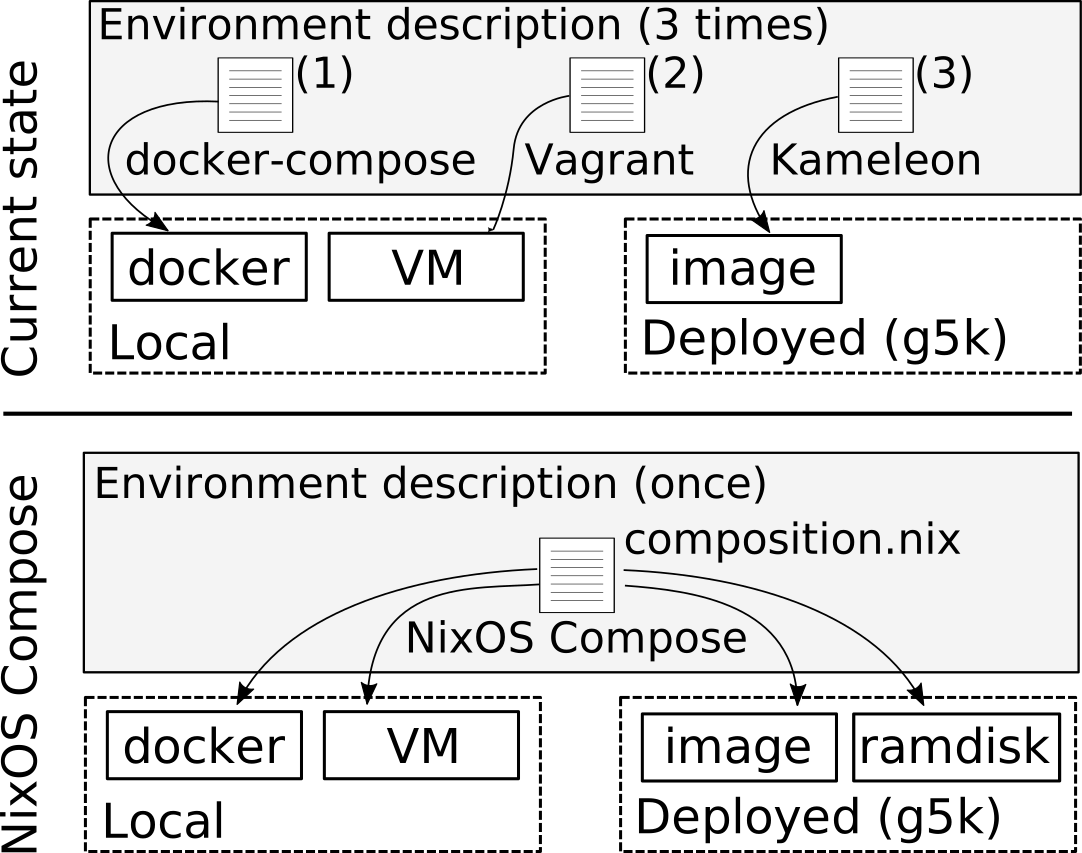
The command line tool provides a similar interaction between the different targeted platforms that we call flavours.
NixOS
As seen in the name of the project, NixOS plays an important role here. We exploit the declarative approach for system configuration provided by the NixOS Linux distribution. We also rely on the reproducibility provided by the Nix package manager which helps in the sharing and rerun of experiments.
Current support
Right now NixOSCompose is still in early stage of development, it supports the following list of flavours.
- local flavours
- docker
- vm (qemu VMs)
- vm-ramdisk (qemu VMs, limited support)
- nspawn (experimental, destructive, limited support)
- distributed flavours
- g5k-image
- g5k-image-script
- g5k-ramdisk
- g5k-nfs-store
Detailed overview
NixOS Compose works in two main phases: Build and Deploy
Tip
You can see how Build and Deploy fit in the whole NixOSCompose composition lifeline.

Build Phase
The build phase triggered by nxc build takes the Composition and the Flavour
and create a NixOS configuration.
To do so, It uses Nix and the provided composition to create one configuration
per Role. All the configurations are put in the Nix store and referenced using a
JSON file. A symlink to this file is kept in the build directory with the name
formatted as [composition]::[flavour].
Deploy Phase
Once the build is done, you can run nxc start. This phase does not use Nix
directly, but it uses the provided build file, and an optional
role-distribution to contextualize the deployment. With these elements it
creates a JSON file within the deploy directory containing all the details
about the deployment.
Then, the deployment is finally applied with the driver that will deploy the environment, using the appropriate methods depending on the flavour.
Installation
In this part we will see how to install NixOS Compose locally and on Grid5000.
The installation and usage differs a bit on Grid5000 due to policy usage restrictions and non Nix first class support.
The use of the nxc command line tool can be achieve in multiple ways and it
will depends at which step in the process of the experiment you are. At the
initialization of a project you will need Nix package manager and NixOSCompose
project. Once an experiment is bundled (after nxc init) it comes with a mean
to access to the nxc command through a shell provided by Nix. There is also the
possibility to use an incomplete version of nxc when a Nix shell becomes a
constraints to access testbeds platform tools, it is the case on Grid5000 (oar
commands are not available in a nix shell).
Nix dependant commands : [ init build ]
Nix independent commands : [ start connect stop ]
The installation and usage of NixOSCompose differs in function of the state at
which the project you are working on is. In the case of a new project you will
want to install the nxc command line tool as it is described in
Local Installation. If the project you are
working on is already using NixOSCompose because you are developing it or in
the case of the re-run of an experiment conducted in the past, you will prefer
to use the version of nxc link to the project. Invoking nxc in an embedded
way is described in
Linked/project embedded nxc
Requirements
- Nix package manager with flake feature activated (see NixOS website and NixOS wiki)
Note
A quick note from NixOS wiki to activate flake feature:
- Non-NixOS Edit
~/.config/nix/nix.confto add this line :experimental-features = nix-command flakes- NixOS Edit your configuration by adding the following options
{ pkgs, ... }: {
    nix = {
        package = pkgs.nixFlakes; # or versioned attributes like nixVersions.nix_2_8
        extraOptions = ''
            experimental-features = nix-command flakes
        '';
    };
}
Configuration requirements
On NixOS you need to enable Docker.
# Docker enabled
virtualisation.docker.enable = true;
Local installation
The following commands will drop you in a shell where the nxc command is
available and all required runtime dependencies (docker, vde2, tmux, qemu_kvm).
git clone https://gitlab.inria.fr/nixos-compose/nixos-compose.git
cd nixos-compose
nix develop .#nxcShell
Alternative
You can take advantage of the full potential of Nix’s flakes. The following command will drop you in the same shell without having to clone the repository.
nix develop https://gitlab.inria.fr/nixos-compose/nixos-compose.git#nxcShell
Tip
Writting the full url is not really practical, an “alias” can be used.
nix registry add nxc git+https://gitlab.inria.fr/nixos-compose/nixos-compose.gitThe command becomes :
nix develop nxc#nxcShell
Project embedded nxc
A project that is already using NixOSCompose in its experiments process
provides an easy access to a shell that gives access to the nxc tool and its
runtime dependencies if needed. This is achieved thanks to Nix and its flakes
feature. By default, a project has a line in its flake.nix similar to this :
devShell.${system} = nxc.devShells.${system}.nxcShell;
It exposes the shell of NixOSCompose as in the previous section but with the
specific revision thanks to the flake.lock file. The shell is accessible with
the command nix develop. It is useful to explore what shells are available in
the project, to list them you use nix flake show. Then to access the devShell
of your choice use this command :
nix develop .#nxcShell
Note
Two shells availables :
nxcShellLite
- python app
nxcnxcShell
- python app
nxc- docker
- vde2
- tmux
- qemu_kvm
Grid5000
On the Grid5000 testbed experiment platform there is no first class support for Nix (as of now).
NixOSCompose relies at least on the presence of the Nix store on the
frontend commands that are not init and build and access to the Nix package
manager for those two. To have it, we need to use some workarounds.
Except for the init and build commands (see details here),
that will requiere a local installation of Nix followed by a chroot, the
rest of the commands are only relying on Python. That means that for building
your distributed environments you will need the reservation of resource.
Nix installation on frontend
We are going to use the script nix-user-chroot.sh.
This script provides Nix without root permissions on the frontend. At its
first call it will install the Nix package manager and create all required
folders in your home folder (e.g. ~/.nix/store/) then change the apparent root
directory so that the nix command works as expected. All subsequent call to
this script will only do the second part followed by the activation of the
nixcommand.
curl -L -O https://raw.githubusercontent.com/oar-team/nix-user-chroot-companion/master/nix-user-chroot.sh
chmod +x nix-user-chroot.sh
On a interactive session on a node (using oarsub -I)
login@dahu-17:~$ ./nix-user-chroot.sh
...
Activate Nix
login@dahu-17:~$
Tip
The call
nix-user-chroot.shcan be done either on the frontend or on a node.Doing it on the frontend would be the easy-route when you want to use the Nix store for small things (e.g. when using nix shells) but we advise to avoid building phases overall on the frontend (any commands that will populate the Nix store) to prevent performance issues for other users of the frontend.
Installation of NixOSCompose
The three following sections describe alternative approaches to install NixOSCompose.
Local installation with a poetry env
Install poetry locally in your home
curl -sSL https://install.python-poetry.org | python3 -
Clone NixOSCompose project then install all python dependencies thanks to Poetry. Finally enter the env.
git clone https://gitlab.inria.fr/nixos-compose/nixos-compose.git
cd nixos-compose
poetry env activate
poetry install
source "$( poetry env list --full-path | grep nixos-compose | grep py3.12 | cut -d' ' -f1 )/bin/activate"
For further use only
source "$( poetry env list --full-path | grep nixos-compose | grep py3.12 | cut -d' ' -f1 )/bin/activate"
is needed.
DEPRECATED: Python virtualenv with poetry then poetry env
Caution
Due to Grid5000’s installed python version (3.9) being out-of-date, this method is currently unavailable.
Similar to the method above but avoid the poetry instalation in your home directory and instead does it in a virtualenv.
git clone https://gitlab.inria.fr/nixos-compose/nixos-compose.git
cd nixos-compose
python3 -m venv /path/to/nxcEnv
. /path/to/nxcEnv/bin/activate
pip install poetry
poetry install
deactivate
Drops you in the virtualenv with NixOSCompose available.
Nix chroot on frontal with nix develop
Note
This method prevents the use of all OAR tooling (
oarsub).
As seen in the local installation it is preferable to use the same nxc version
that the one used in the project. The downside of this method is that you are
loosing access to the specific commands of the platform (e.g. oarsub command
is not acessible in a nix-shell) so you need either do your reservation of
ressources before entering those commands or use multiple terminal or a terminal
multiplxer (for instance tmux).
./nix-user-chroot.sh #activate Nix
nix develop .#nxcShellLite
The intent of this guide is to go through the different commands made available
by nxc. We will depict the workflow while you are setting up your environments
or running an experiment. We are not yet going in detail into the content of a
composition neither how to write it.
Local usage
It is convenient to work locally during the development phase or during the configuration of the software environment, as it allows for fast development cycles. NixOSCompose allows to quickly iterate with docker containers or VMs, and it avoids using testbed platforms during early testing phases.
Later, when our composition is ready, we will deploy it to Grid5000.
Initialization of a project
There are some templates (using the template mechanism of Nix flakes) that
provide the boilerplate to start a project. You can do this either with a
locally available NixOSCompose or with the nix flake command. It will copy
all necessary files. You can use these commands on a new folder or for your
existing project folder.
For the following, we are using the basic template. It is a composition that
describes an evironment composed of one node called foo that contains nothing.
-
Nix flake’s template
To avoid writting the full path to the NixOSCompose flake we are using the Nix registries.
nix registry add nxc git+https://gitlab.inria.fr/nixos-compose/nixos-compose.gitSo now in any Nix flake related command writting
nxc#will be equivalent togit+https://gitlab.inria.fr/nixos-compose/nixos-compose.git#.# initialize current folder nix flake init -t nxc#basic # or initialize projectFolder nix flake new projectFolder -t nxc#basic -
local NixOSCompose
Using your locally installed NixOSCompose the commands are the following.
cd nixos-compose
nix develop .#nxcShellLite
cd path/to/projectFolder
nxc init -t basic
You can then quit the
nix-shellprovided by the commandnix developwithCtrl-d.
At the end you end up with this:
$ tree projectFolder
projectFolder
├── composition.nix
├── flake.nix
└── nxc.json

0 directories, 3 files
These 3 files are the minimum requiered by NixOSCompose.
flake.nixis the entry point for a Nix project, it defines all the dependencies and exposes differents outputs, likedevShellsorpackages.composition.nixwhere the configuration of the roles needed by your experiment is described.nxc.jsondefines a few default variables for NixOSCompose.
All those files need to be tracked by Git. Nix flakes even require it to work properly.
git init && git add *
If your project is already using git you just need to add those files.
git add flake.nix composition.nix nxc.json
Overview of composition.nix
Nodes are listed under the field nodes and we can see that we have one node
called foo.
{ pkgs, ... }: {
nodes = {
    foo = { pkgs, ... }:
    {
        # add needed package
        # environment.systemPackages = with pkgs; [ socat ];
    };
};
testScript = ''
    foo.succeed("true")
'';
}
Local development and usage
First enter the nxc shell. Here we choose nxcShell because it provides all
necessary dependencies to run the composition locally (e.g. docker-compose).
cd path/to/projectFolder
nix develop .#nxcShell
Note
The first call to
nix developcan take quite some time because it will fetch and/or build all depedencies for thenxcshell. Later calls to this command would be faster because everything will already be present in the Nix store (on condition that the flake’s inputs did not change).
Building
The composition can then be built. The command below will evaluate the
composition file then build the necessary artifacts for a local deployment using
docker containers. The files generated at build time for the different flavours
are put in a new build folder. As we are building the docker flavour, it
hosts the docker-compose file for our composition.
nxc build -f docker
Tip
If there is an error in the nix code this is when it would show up.
Local deployment
1. Start
The local deployment is done thanks to the command below. The option -f docker
says that we explicitly want to deploy the composition with the docker flavour.
This option is optional. If called without it, the command would choose the most
recently built flavour.
nxc start -f docker
You can check that the corresponding container has been launched.
$ docker ps --format '{{.Names}}'
docker_compose_foo_1
Note
The
buildfolder does not need to be tracked by git.
2. Interact
You can connect to the node with
nxc connect foo
which will open a shell in the container foo.
3. Stop
Lastly the virtualized environment can be stopped with the following command. It stops the container previously launched.
nxc stop
Edition and test loop
The three steps above plus the editing of the composition create a convenient “Edit - Test” loop. It allows to quickly iterate on the set up of the environments. At some point the configurations converge to something satisfactory and physicial deployment is the next step.
Physical deployment on Grid5000
At first you need to import your project to your home folder on Grid5000 with your prefered method (rsync, git, …).
Building on Grid5000
This phase requires the reservation of a node in interactive mode with
oarsub -I. Once you have access to the node you need to activate Nix with
the script nix-user-chroot.sh (see
grid5000 install)
./nix-user-chroot.sh
Enter the nix-shell that provides the nxc command.
cd path/to/project
nix develop .#nxcShellLite
You can now to build the g5k-ramdisk flavour.
nxc build -f g5k-ramdisk
Since the Nix store is shared between the frontend and the build node, all
created artifacts will then be available from the frontend for the deployment.
Everything will stay accessible from the build folder.
Once the building is done you can release the Grid5000 ressource.
Deployment
The first step is to claim the ressources needed by the project, here only 1 node.
enter virtual env that contains nxc
cd path/to/nixos-compose
source "$( poetry env list --full-path | grep nixos-compose | grep py3.12 | cut -d' ' -f1 )/bin/activate"
Ressource reservation
The reservation through the command line needs the command below, it requests
one node for 30 minutes. At the same time it lists the machines in the stdout
file associated to the reservation ( OAR.<oar_job_id>.sdtout ) and defines the
$OAR_JOB_ID environment variable. This information are needed for the next
step.
cd path/to/project
export $(oarsub -l nodes=1,walltime=0:30 "$(nxc helper g5k_script) 30m" | grep OAR_JOB_ID)
Note
The command above asks OAR for some ressources, then execute a script that sends the user public key to the nodes.
export $(oarsub -l nodes=<NODES>,walltime=<TIME1> "$(nxc helper g5k_script) <TIME2>" | grep OAR_JOB_ID)
- NODES : number of nodes needed for the experiment.
- TIME1 : duration of the reservation with
h:minute:secondsyntax (see Grid5000 wiki)- TIME2 : duration of the
sleepcommand sended to the nodes, usualy same lenght as the reservation duration. Syntax available in coreutils documentation
Once the resources are available the OAR.$OAR_JOB_ID.stdout file is created.
$ cat OAR.$OAR_JOB_ID.stdout
dahu-7.grenoble.grid5000.fr
Actual deployment
At this step we have ressources available and the composition has been built in
the desired flavour, g5k-ramdisk. We can now launch the deployment. The
command is similar to a local virtualized deployment exept for the option -m
that requiered a file that list all remote machines covered by our deployment.
If you used the command seen at the previous step the list of machine is in the
OAR.$OAR_JOB_ID.stdout file.
nxc start -f g5k-ramdisk -m OAR.$OAR_JOB_ID.stdout
Interact
Similarly than with docker run locally, the command below will open a shell in
the foo node.
nxc connect foo
Release of ressources
Once you finished with the node you can release the ressources.
oardel $OAR_JOB_ID
tuto on pythoneri insert script bash …
Here we complete the quick start guide that was focused on the CLI, we will go further in detail with how to write the composition file, how to import personal software and the different files of a NixOSCompose project.
~ Here we will go through a complete workflow with the local test deployment with docker and a Grid5000 deployment of a Nginx server and a test client.
- initialization
- review of the files
- launch/test
- Edit the composition
- add a benchmark tool
- launch/test
- add a custom script ?
Initialization
First let’s create a folder for our project locally, we are creating it with the template mechanism of Nix flakes. The template that we are importing is a client/server architecture, the server hosts a Nginx webserver.
nix flake new webserver -t nxc#webserver
Tip
To avoid writing the full path to the NixOSCompose flake we are using the Nix registries.
nix registry add nxc git+https://gitlab.inria.fr/nixos-compose/nixos-compose.git
If we inspect the content of our new created folder we obtain this.
$ tree webserver
webserver/
├── composition.nix
├── flake.nix
└── nxc.json

0 directories, 3 files
Description of the files
flake.nix
A file that is key in the reproducibility of project. It defines all the dependencies of a project and what it is able to provide as outputs You can learn a bit onto how a flake file works here.
This file manages the dependencies and the outputs of a project. It has multiple fields :
- description
- inputs
- outputs
The description is a string that describes the flake.
The inputs is a set defining
{
  description = "nixos-compose - basic webserver setup";

  inputs = {
    nixpkgs.url = "github:NixOS/nixpkgs/nixpkgs-unstable";
    nxc.url = "git+https://gitlab.inria.fr/nixos-compose/nixos-compose.git";
  };

  outputs = { self, nixpkgs, nxc }:
  let
    system = "x86_64-linux";
  in {
    packages.${system} = nxc.lib.compose {
      inherit nixpkgs system;
      composition = ./composition.nix;
    };

    defaultPackage.${system} =
      self.packages.${system}."composition::vm";

    devShell.${system} = nxc.devShells.${system}.nxcShellLite;
  };
}
composition.nix{ pkgs, ... }: { nodes = { server = { pkgs, ... }: { services.nginx = { enable = true; # a minimal site with one page virtualHosts.default = { root = pkgs.runCommand "testdir" { } '' mkdir "$out" echo hello world > "$out/index.html" ''; }; }; networking.firewall.enable = false; }; client = { ... }: { }; }; testScript = '' server.wait_for_unit("nginx.service") client.wait_for_unit("network.target") assert "hello world" in client.succeed("curl -sSf http://server/") ''; }nxc.json{ "composition": "composition.nix", "default_flavour": "vm" }
Create your first Composition
So, you want to create your first composition? That’s cool!
Let’s get started on creating something simple & improving it step-by-step!
Starting fresh
First, we want to initialize the basic template wherever you feel like it
belongs:
cd somewhere
nxc init -t basic
You will then find the following files within:
composition.nix- This is the file where you will describe your nodes
flake.nix- This is the nix flakes that provides the information of your composition to NixOS-Compose, we will edit this later.
nxc.json- This is the saved user preferences.
Editing your composition
Our composition is described in composition.nix, we can’t go ahead & add a
package to our node by doing this:
composition.nix:
{ pkgs, ... }: {
  roles = {
    foo = { pkgs, lib, ... }:
-      { };
+      {
+        environment.systemPackages = with pkgs; [ socat ];
+      };
  };
  testScript = ''
    foo.succeed("true")
  '';
}
Testing it locally
That’s great, we now have a node with the socat package installed, let’s go
ahead and test this.
We can run the following commands to do so:
nxc build
nxc start -I
This will build, then start your composition in a VM (running QEMU).
The -I parameter in nxc start starts a Python repl in your terminal, so we
can interact with your composition directly.
Testing manually
Now that our composition is running & that we are in repl, we can run tests manually!
Start
Let’s first start our composition by running the following:
start_all()
This will start the VM and execute nothing else.
Tip
Running
start_all()is not necessary in compositions, but it ensures that ALL your nodes are started & ready to be used, even if you don’t reference it in your test_script!
Run a command that succeeds
Now let’s test that socat properly works by running the following command in
repl:
foo.succeed("socat /dev/null TCP4:google.com:443")
Of note in the example above:
foois our node (hostname)succeed(...)is a function provided by the NixOS-test environment to check if a command succeeds."socat ..."is the command we are running on the node.
If everything goes well, the VM will print out the following:
(finished: must succeed: socat /dev/null TCP4:google.com:443, in 0.19 seconds)
Run a command that fails
If we try running a command that fails:
foo.succeed("socat /dev/null TCP4:bad:443")
repl will output a stacktrace of our command failing:
Traceback (most recent call last):
  File "<stdin>", line 1, in <module>
  File "/nix/store/097dh3q9rr4i4mzhpr26cww2hnxlas6q-python3-3.13.15-env/lib/python3.13/site-packages/nixos_compose/driver/machine.py", line 482, in succeed
    raise RuntimeError(
        f"command `{command}` failed (exit code {status})"
    )
RuntimeError: command `socat /dev/null TCP4:bad:443` failed (exit code 1)
Exit
You can exit repl by running:
exit()
Automated testing
Cool, our manual socat tests work!
That’s great & all, but we want to make sure that we run this exact set of commands everytime we start the composition!
So let’s get to it, let’s write our first test-script!
Add your own test-script
NixOS-Compose can execute your test-script located in your composition file. Let’s use the example above as our test:
composition.nix:
{ pkgs, ... }: {
  roles = {
    foo = { pkgs, lib, ... }:
      {
        environment.systemPackages = with pkgs; [ socat ];
      };
  };
  testScript = ''
-    foo.succeed("true")
+    foo.succeed("socat /dev/null TCP4:google.com:443")
+    foo.fail("socat /dev/null TCP4:bad:443")
  '';
}
You can then run your composition with:
nxc build
nxc start -t
The -t parameter in nxc start starts the test-scripts automatically.
It should output the following line if all tests succeed:
test script finished in 20.34s
Running on another flavour
Now that our composition is ready to be used, we can start it with other flavours.
Let’s try locally, with docker first, with the following:
nxc build -f docker
nxc start -f docker -t
Running on an experiment platform
Cool, it runs well locally. Let’s try on Grid5000.
First of all, you will need to follow the install process for Grid5000 as described here.
Once that’s done, we can build & start our composition.
Building on Grid5000
Start a fresh SSH session, oarsub -I if required by your preffered method.
On this shell, you want to have nix & nxc available.
- One way to enable
nixis to run thesetup-remote-nix.sh(mostly limited access), ornix-user-chroot.sh. - One way to enable
nxcis by having it installed by usingpip install.
Once this is done, you can run:
nxc build -f g5k-nfs-store
Starting on Grid5000
Start another fresh SSH session, stay on the frontend.
On this shell you want to have nxc available. DON’T user-chroot nix, as that
will break you OAR accesses.
Once this is done, you can order your node by running:
export $(oarsub -l nodes=1,walltime=1:0:0 "$(nxc helper g5k_script) 1h" | grep OAR_JOB_ID)
echo $OAR_JOB_ID
The above command will order 1 node (node=1) for 1 hour (walltime=1:0:0),
with the correct setup script (nxc helper g5k_script). It will re-export
$OAR_JOB_ID for future commands & oardel.
You can then start with the following:
nxc start -m OAR.$OAR_JOB_ID.stdout -W -f g5k-nfs-store
By default, the test-script won’t run here. You can use the following command to connect to your node:
nxc connect
Once you are done, you can stop your node by deleting your job reservation by running:
oardel $OAR_JOB_ID
Multi-composition
Sometimes you have two or more compositions that have a lot in common. For example, you want to test a tool with different integration, or run performance tests on multiple similar tools, etc…
To do so, NixOSCompose provides a simple mechanism that allows you to create a multi-composition.
Example
Here is a simple example of a composition.nix file:
{
  oar = import ./oar.nix;
  slurm = import ./slurm.nix;
}
Each *.nix file being a composition file itself. For example, the oar.nix
might look like:
{ pkgs, ... }: {
  roles =
    let
      commonConfig = import ./common_config.nix { inherit pkgs; };
    in
    {
      server = { ... }: {
        imports = [ commonConfig oarConfig ];
        services.oar.server.enable = true;
        services.oar.dbserver.enable = true;
      };

      node = { ... }: {
        imports = [ commonConfig oarConfig ];
        services.oar.node.enable = true;
      };
    };

  rolesDistribution = { node = 2; };
}
This compositions can be built and started with the VM flavour using the -C or
--composition-flavour option:
nxc build -C oar::vm
nxc start -C oar::vm
Tip
NixOSCompose will build all compositions when
-Cparameter is not provided in the build phase. Although, the-Cparameter is still required for starting.
Step-by-step how-to create your first multi-composition
First, initialize the template wherever you feel like it belongs:
cd somewhere
nxc init -t multi-compositions
You can then edit your compositions (you can learn more over here).
Build everything:
nxc build
Then finally run it:
nxc start -C foo::vm
Multi-platform
Sometimes, you need to run your composition(s) in multiple (or specific) platforms.
For example, if your setup requires an exotic kind of cluster, it may only be
available in ARM (aarch64) CPU instruction-set.
NixOS-Compose supports multi-platform by default. You just need to enable it.
Here is a basic flake example for various platforms (here: x86-64, aarch64 &
powerpc64le):
{
  ...

  outputs = { self, nixpkgs, nxc }:
    let
      systems = [
        "x86_64-linux"
        "powerpc64le-linux"
        "aarch64-linux"
      ];
      forAllSystems = nixpkgs.lib.genAttrs systems;
    in
    {
      packages = forAllSystems (system:
        nxc.lib.compose {
          inherit nixpkgs system;
          composition = ./composition.nix;
        }
      );

      defaultPackage = forAllSystems (system:
        self.packages.${system}."composition::vm"
      );

      devShell = forAllSystems (system:
        nxc.devShells.${system}.nxcShell
      );
    };
}
You can adapt this to your need by the systems array; This provides the
necessary definitions for building your flake with these 3 systems.
Tip
You can find a list of platforms that are currently supported by nixpkgs over in the nixpkgs manual.
Using NixOS-Compose with different platforms
Once defined in your flake, you can use a specific platform by specifying the
namespace in which you want NixOS-Compose to build against.
Note
In the following example, we are running a build with the VM flavour, with
aarch64as our system.This will only succeed if the host running the command can actually compile
aarch64.
nxc build -f vm --namespace .#packages.aarch64-linux
You can also use a remote-builder if you have one available:
nxc build -f vm --namespace .#packages.aarch64-linux --mounted-store-url builder@remote-builder
That is; If your builder supports the target platform.
Tip
If you wish to compile another platform (let’s say you want
aarch64), but your system is not compatible (let’s say you runx86-64), you can use tools such as binfmt.Compiling with this tool is quite slow, but it gets the job done.
Import Flakes
If you want to use packages, modules, or libraries form another Nix Flake, you can make it available in your composition using an overlay.
In order to add this overlay, you have to edit the flake.nix file and add your
flake as input. For example:
inputs = {
  # ...
  myFlake.url = "github:myTeam/myFlake";
};
Here is how you can add an extra package using an overlay or add a NixOS module
using the extraConfigurations parameter:
  outputs = { self, nixpkgs, nxc, myFlake }:
    let
      system = "x86_64-linux";
    in
    {
      packages.${system} = nxc.lib.compose {
        inherit nixpkgs system;

        # Use this to make a NixOS module available
        extraConfigurations = [ myFlake.nixosModules.myModule ];

        # Use this to make a Nix package available
        overlays = [
           (self: super: {
             myTool = myFlake.packages.${system}.myTool;
           })
        ];
        setup = ./setup.toml;
        compositions = ./composition.nix;
      };
    };
    # ...
Tip
For more details on overlays, checkout the Nixpkgs documentation on Overlays
You can now use your package or your module in your composition just like the
ones present in nixpkgs, for example:
{ pkgs }:
{
  roles = {
    node1 = {
      services.myService.enabled = true;
    }
    node2 = {
      environment.systemPackages = with pkgs; [ pkgs.myTool ];
    }
  };
}
Composition setup variants
You can create a setup.toml file in your composition. It allows you to specify
build‑time options and variant parameters at runtime.
Note
setup.tomlmust be referenced in yourflake.nixfor this mechanism to work.outputs = { self, nixpkgs, nxc }: { packages = forAllSystems (system: nxc.lib.compose { inherit nixpkgs system; setup = ./setup.toml; composition = ./composition.nix; })};
What you can do with this
You can create profiles for your compositions & configure them with various parameters that can be used within your composition;
Tip
You can initialize the
setupcomposition template by running:nxc init -t setup
Global options
[options]
nix-flags = "--impure"
composition-file = "testing.nix"
composition-flavour = "testing::vm"
flavour = "vm"
kernel-params = "intel_pstate=disable"
These values are used as defaults for the nxc build command. The arguments you
specify when running the command always take precedence over this file.
Parameters
You can define arbitrary parameters under a params table. They are made
available to your Nix expressions in composition via the setup object.
[params]
a = "hello"
b = 74
environment.variables.A = setup.params.a; # Evaluates to "hello"
environment.variables.B = builtins.toString (setup.params.b + 1); # Evaluates to "75"
Tip
You can temporarily override them when running the command by using the
--setup-paramflag (i.e.--setup-param "a=world")You can repeat this argument to add some more.
Variants
A variant is a named section that can provide its own [options] and
[params].
[dev]
[dev.params]
a = "dev‑value"
b = 74

[dev.options]
nix-flags = "--impure"
composition-file = "dev.nix"
Select a variant with --setup:
nxc build --setup dev
The selected variant in this example will then be stored in the file under:
[project]
selected = "dev"
Example
Given the following setup.toml:
[project]

[params]
a = "hello world"
b = 10

[options]
nix-flags = "--impure"

[dev.options]
nix-flags = "--impure -L debug"
composition-file = "dev.nix"
Running
nxc build --setup dev
will build using the dev variant options, while
nxc build --setup-param "a=override"
will override the a parameter with the value override.
nxc init
nxc init
Initialize a new environment.
Usage
nxc init [OPTIONS]
Options
-
--no-symlinkDisable symlink creation to nxc.json (need to change directory for next command Default:False -
-n, --disable-detectionDisable platform detection. Default:False -
-f, --default-flavourSet default flavour to build, if not given nixos-compose try to find a good -
--list-flavours-jsonList description of flavours, in json format Default:False -
-F, --list-flavoursList available flavour Default:False -
-t, --templateUse a template Default:basic -
--use-local-templatesEither use the local templates or not Default:False -
--list-templates-jsonDisplay the list of available templates as JSON Default:False -
--helpShow this message and exit. Default:False
nxc build
nxc build
Builds the composition.
It generates a build folder which stores symlinks to the closure associated to
a composition. The file name of the symlink follows this structure
[composition-name]::[flavour]
Examples
-
nxc build -t vmBuild the
vmflavour of your composition. -
nxc build -C oar::g5k-nfs-storeBuild the
oarcomposition with theg5k-nfs-storeflavour`.
Usage
nxc build [OPTIONS] [COMPOSITION_FILE]
Options
-
composition_file -
--nix-flagsadd nix flags (aka options) to nix build command, –nix-flags “–impure” -
--namespace, -NAttribute namespace for compositions (e.g..#legacyPackages.x86_64-linux.hellofor compositions under.#legacyPackages.x86_64-linux.hello."composition::<flavor>"). Defaults to.#packages.x86_64-linux -
--out-link, -opath of the symlink to the build result -
-f, --flavourUse particular flavour (name or path) -
-F, --list-flavoursList available flavour Default:False -
--show-traceShow Nix trace Default:False -
--dry-runShow what this command would do without doing it Default:False -
--dry-buildEval build expression and show store entry without building derivation Default:False -
-C, --composition-flavourUse to specify which composition and flavour combination to build when multiple compositions are describe at once (see -L options to list them). -
-L, --list-compositions-flavoursList available combinations of compositions and flavours Default:False -
-s, --setupSelect setup variant -
-p, --setup-paramOverride setup parameter -
-u, --update-flakeUpdate flake.lock equivalent to: nix flake update Default:False -
--monitorBuild with nix-output-monitor Default:False -
--helpShow this message and exit. Default:False
nxc start
nxc start
Starts a set of nodes using the previous build.
ROLE_DISTRIBUTION_FILE is and optional YAML file describing how many instance
of each role are expected.
Examples
-
nxc startStart the last built composition.
-
nxc start role-distrib.yamlWith the file
role-distrib.yamlwritten as this:nfsServerNode: 1 nfsClientNode: 2Instantiates two nodes with the role
nfsClientNodeand one only with the rolenfsServerNode. Of course, these roles have to be described beforehand in acomposition.nixfile.
Usage
nxc start [OPTIONS] [ROLES_DISTRIBUTION_FILE]
Options
-
-I, --interactivedrop into a python repl with driver functions Default:False -
-m, --machine-filefile that contains remote machines names to (duplicates are considered as one). -
-W, --wait-machine-filewait machine-file creation Default:False -
-s, --sshspecify particular ssh command Default:ssh -l root -
-S, --sudospecify particular sudo command Default:sudo -
--push-pathremote path where to push image, kernel and kexec_script on machines (use to re-kexec) -
--reusesupposed a previous succeded start (w/ root access via ssh) Default:False -
--remote-deployment-infodeployement info is served by http (in place of kernel parameters) Default:False -
--portPort to use for the HTTP server Default:0 -
-c, -C, --compositionspecify composition, can specify flavour e.g. composition::flavour -
-f, --flavourspecify flavour -
-t, --test-scriptexecute testscript Default:False -
--file-test-scriptalternative testscript -
-w, --sigwaitwait any signal to exit after a start only action (not testscript execution or interactive use Default:False -
-k, --kernel-paramsadditional kernel parameters, this option is flavour dependent -
-r, --role-distributionspecify the number of nodes or nodes’ name for a role (e.g. compute=2 or server=foo,bar ). -
roles_distribution_file -
--compose-infospecific compose info file -
-i, --identity-filepath to the ssh public key to use to connect to the deployments -
-s, --setupSelect setup variant -
-p, --parameterParameter added to deployment file (for contextualization phase) -
-P, --parameter-fileJson file contains parameters added to deployment file (for contextualization phase) -
-d, --deployment-fileDeployement json file use for the deployment (skip generation) Warning parametrization not supported (upto now) -
--ip-rangeIP range (for now only usable with nspawn flavour) Default: `` -
--helpShow this message and exit. Default:False
nxc connect
nxc connect
Opens one or more terminal sessions into the deployed nodes. By default, it will connect to all nodes, but we can specify which ones to connect to.
To connect to several machines at once. For this, we use a tmux (terminal multiplexer) session. Feel free to refer to the tmux documentation (or its cheatsheet), especially for the shortcuts to navigate between the different tabs.
Examples
-
nxc connectOpen a Tmux session with on panel for each node.
-
nxc connect serverConnect to the
servernode. It runs on the current shell (Tmux is not used in this case)
Usage
nxc connect [OPTIONS] [HOST]...
Options
-
-l, --userDefault:
root -
-g, --geometryTmux geometry, 2 splitting indications are supported: +/, examples: “1+3+2” (3 adjacent panes respectively horizontally splited by 1,3 and 2), “23” (2 adjacent panes horizontally splitted by 3) -
-d, --deployment-fileDeployment file, take the latest created in deploy directory by default -
-f, --flavourflavour, by default it’s extracted from deployment file name -
-i, --identity-filepath to the ssh public private used to connect to the deployments -
-pc, --pane-consoleAdd a pane console Default:False -
host -
--helpShow this message and exit. Default:False
nxc driver
nxc driver
Run the driver to execute the given script to interact with the deployed environment. The script is a python script similar to nixos-test script. See the NixOS manual on nixos-tests for more details.
Warning
Be aware that unlike Nixos-test that only support virtual machines,
nxcsupports many flavours and VM specific features are not supported.
Examples
-
nxc driver -tRun the script defined in the composition
Usage
nxc driver [OPTIONS] [TEST_SCRIPT_FILE]
Options
-
-l, --userDefault:
root -
-d, --deployment-fileDeployment file, take the latest created in deploy directory by default -
-f, --flavourflavour, by default it’s extracted from deployment file name -
-t, --test-scriptexecute the ‘embedded’ testScript Default:False -
test-script-file -
--helpShow this message and exit. Default:False
nxc stop
nxc stop
Stop Nixos composition.
Usage
nxc stop [OPTIONS]
Options
-
-f, --flavourspecify flavour -
-d, --deployment-filespecify deployment -
--helpShow this message and exit. Default:False
nxc clean
nxc clean
Clean the nxc folder and nxc.json file
Usage
nxc clean [OPTIONS]
Options
--helpShow this message and exit. Default:False
nxc helper
nxc helper
Specific and contextual helper information (e.g. g5k_script path for Grid’5000) Warning: Experimental command, may be removed in the future or change without backward compatibility care.
Usage
nxc helper [OPTIONS] [OPTIONS]...
Options
-
-l, --listList of available helpers Default:False -
options -
--helpShow this message and exit. Default:False
Overview
This project is written in Python, mostly presenting as a CLI using Click.
NixOS Compose also exposes itself as an execo interface for use in other execo scripts.
NixOS Compose heavily uses
the subprocess module for
using adjacent tools on the system. You should be good to go if you are using
the nxcShell flake devShell.
NixOS Compose runs its unit tests & integration tests with pytest.
The project also uses Halo as a UI helper.
Development environment
Local
The main way to develop the tool is to do this locally on your computer.
All you need is Nix (both nixcpp or Lix are supported). Once you have flakes
enabled, you can run:
nix develop
This will setup a shell where everything you need is available!
You will only be missing an editor; We recommend using zed (it is not included
in the devshell).
You can now run your favorite IDE in your devshell:
Tip
For opening
zed:zeditor .
Grid5000
Some users have reportedly developed the tool on g5k directly. That’s a crazy thing as g5k does not support nix by default.
Support for this is limited (Justfile does not take this in account when running) & may break in the future.
One way to get it working is to follow the g5k local installation.
Important commands
Most of the helper commands use just. Make sure
it is installed to use the justfile.
Linting
It is important to lint your project before pushing, or the CI will block your PR.
You can do that by running:
just lint
or:
nix fmt
This will change existing code, make sure to run it BEFORE you commit anything (or you will have to amend).
BasedPyRight
If you are using an editor (ie zed) with pyright/basedpyright support, you should already be good to go.
If not, it is important to validate your code before pushing, or the CI will block your PR.
You can do that by running:
basedpyright
Pytest
It is important for you to run tests when you change stuff in the code.
The tests are written to make sure that none of your changes break existing features. If it does, it will let you know and tell you which tests to change (or which feature was broken!!!).
Tests are your friends, not your enemy, treat them with care and they will tell you their wisdom (just keep tests up-to-date with current behaviour & you will know what’s broken).
To run tests you can run 1 of these, in speed order (test is around <20sec per
tests, test-full takes hours in total):
just test
just test-fast
just test-slow
just test-full
- You can specify a Grid5000 site as a 1st argument if you want to test run integration tests on G5K, default is none (local only).
- You can specify the number of cores to use in tests as 2nd argument (paralellism is provided by pytest-xdist), default is 4.
- You can specify the
-kflag as 3rd argument;-kenables you to run tests matching an expression (kind of a test search bar), here is the doc.
Tip
just test-full grenoble 8 g5k-image-script-nbp-mpi
Contributing
You can find all of that in CONTRIBUTING.md.
Understanding the CLI routing
The nxc command invokes nixos_compose/cli.py which in turns calls one of the
files in nixos_compose/commands based on the command verb that was provided.
Here, command verb is to be understood as a single word following the nxc
characters after a space, like is done nowadays with several command line tools.
For instance the command verb for nxc connect is connect, which will be
handled in nixos_compose/commands/cmd_connect.py.
You will also find a couple various ctx variables passed around the code. It
refers to instances of various Contexts object. You can read more on this over
here.
Flavours
A Flavour is a kind of way of running the Driver.
This enables you to use the best tool to run your test-script, without changing the composition itself.
Building a composition with a Flavour will create its Composition file in
build/[composition_name]::[flavour_name].
Note
A composition’s Flavour can be changed any time: when you build your composition with a Flavour, it will store the result for that specific Flavour. You can have multiple built compositions stored under the
builddirectory.
Once built, you can deploy the composition with this Flavour whenever.
Warning
When it comes to the Deploy phase, you first need to have your composition built with the Flavour you are trying to use!
Nix
A Flavour is also defined within the Nix code, under flavours. It constructs
an output specific to the Flavour you requested.
Image type
You can specify the kind of output Nix produces in the flavour-type (defined in
nix/flavours.json, nixos_compose/models/flavour.py & your Nix implementation
nix/flavours/[...].nix).
Note
This Image type is quite central to evaluating the Nix output, it is used to evaluate
flavoured_all.
Development specifications
A Flavour inherits the FlavourABC type.
Depending on your implementation & behaviours, you can inherit other types (such
as LaunchableABC, CanStartAllABC & others…). Those enable a more precise
implementation of some features.
Flavour-specific build process
You can override the build function to define your own behaviour after
building the Nix flavour output.
Note
An example of this can be found within
G5kImageScriptFlavour.It contains a function that runs the script produced by Nix to generate the tarball to deploy.
Generating Deployment info
The Flavour is responsible with generating the Deployment info by overriding
generate_deployment_info.
At this point, the Flavour should retrieve & prepare all required data for creating the deployment info.
Driver initialization
The function driver_initialize defines behaviour for initializing the Driver
& its Machines.
Note
It is very common for Flavours to have their own inherited
Machinetype (such asGrid5000Machine) to hook some test_script/repl calls.Driver initialization is where you would inject your own, when instantiating your
Machines.
Clean up
In case you have any permanent resources you used temporarily & want to
clean-up, you should use the cleanup function.
Warning
Although it may looks like it, it is possible for this function to NOT get called (it could get skipped if NixOS-Compose gets killed while still running). Manual clean-up methods should be ready just in case.
LaunchableABC
When Starting with a LaunchableABC Flavour, an additionnal process will be
applied to the environment for this Flavour.
Currently quite hard-coded to Grid5000 behaviour, it does:
- Generating KExec script, if supported
- Pushing kernel, initrd & kexec script to another machine, if necessary.
- Start HTTPD for Kernel param retrievial
- Call
launch
Launch
Launch is a special process that is called designed to overtake the Driver
system, starting the experiment its own way.
Its behaviour is very Flavour dependent. The Starting process will exit(0)
after completion.
CanStartAllABC
When the test_script (or repl) calls the start_all function, you can override
the default behaviour by inheriting CanStartAllABC.
The process you defined with this override will take precedence over the standard NixOS-test-driver behaviour.
Various Contexts
NixOS Compose tracks the state of the process within variables suffixed with
ctx, of various Context types.
Context
Located in nixos_compose/context.py.
This is the main context scope of this tool. It contains various general variables & functions (such as logging).
- Some parts are initially filled in the root entrypoint.
- Some others are filled within the process.
This also stores working variables, such as composition & deployment content.
DriverContext
Located in nixos_compose/contexts/driver.py.
This tracks the parameters for Driver invocations.
StartContext
Located in nixos_compose/contexts/start.py.
This tracks the parameters for start invocations.
HTTPDContext
Located in nixos_compose/contexts/httpd.py.
This keeps track of the status of HTTP Deamon, used for extended kernel deployments.
It can be passed around, but is mostly accessed thru StartContext (as it is used in the start process)
Models
NixOS-Compose relies on quite a few models along its process.
Most of them are designed for store or communicate the state of various steps.
Description
The Description model is common to Composition & Deployment models.
It contains data for each node, specifically on how it boots (initrd,
kernel, stage1, qemu_script (if any), …).
It is mostly contained within a dictionary in each parent model. It most
situations, it is contained within a "all" key, representing the all-in-one
image.
Note
An all-in-one image is a nix built image containing all machines in your composition. It can become quite heavy in some situations, as it contains all data for all machines at once.
The machine / node will know which boot on based on its role & ip address.
Flavour
The Flavour model is an extract of a flavour description, as described in the flavour documentation.
Composition info
This is the main model. Composition is first built by Nix, and gradually completed by NixOS-Compose during the build process.
It is also used for creating the Deployment model later, for starting the Driver.
Deployment info
This is the output of the start/driver process. It is partially created from the Composition model.
It describes the nodes / machines, roles, test_script, ssh keys & all other information required for running the driver.
The machines may be receiving this file for self-configuring.
NXC file
This model is used for configuring your composition, based on your needs.
Tip
This model is constructed from a file read at the root of your composition flake, the file must be named
nxc.json.You can find various examples in the examples directory.
Developer Documentation
This documentation should serve as a technical basis for new & experienced user of this tool.
Work on documentation locally
mdbook serve docs
Generate the CLI reference documentation
To generate the reference documentation directly from the code use this command:
python ./docs/tool/generate_md_doc.py dumps --baseModule=nixos_compose.cli --baseCommand=nxc --docsPath=./docs/src/references/commands